1. Access to PHOENIQS Chat
Access to PHOENIQS Chat starts with a subscription, either through your company or one you purchase yourself. We offer a free Evaluation plan and a Chat Dedicated plan (compare them).
If your company already has a paid PHOENIQS Chat subscription, your administrator has added you as a user of your company in the Phoeniqs Console and shared your access URL (e.g., chat.your-company.ch). Paid plans include enterprise SSO with the option to login with your custom company identity provider or choose the ones we have out of the box. You never type a password into PHOENIQS Chat; your identity provider stays in charge.
If you are buying a PHOENIQS Chat subscription for the first time, make sure your Base LLM API subscription is active and fully provisioned first. See Provision PHOENIQS Chat for the full procedure.
The features available to you depend on the plan your company has subscribed to.
2. Get oriented
Before you start, take a quick tour of the PHOENIQS Chat interface, six main areas you'll use most.
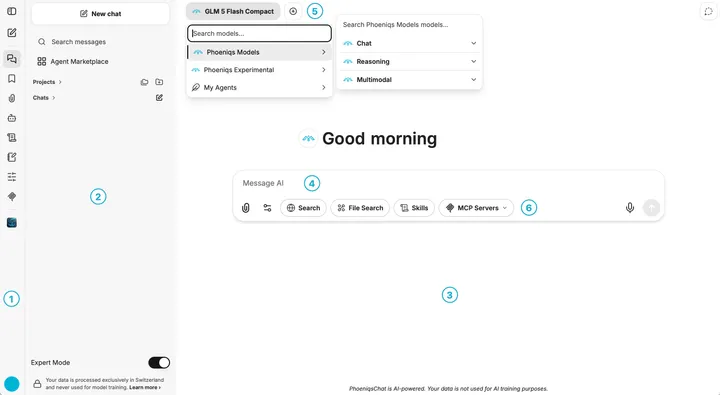
PHOENIQS Chat Interface
Use the table below to learn how to navigate the chat interface.
3. Have your first conversation
Click the  "New chat" icon and try writing a real prompt based on the task you want to solve. Strong prompts give the AI assistant four things: a role to take, context about the situation, the task to complete, and the format of the answer. For example:
"You're a legal counsel at a Swiss SaaS company. Draft a Data Processing Agreement (DPA) between our company and an enterprise customer, compliant with the Swiss Federal Act on Data Protection (FADP) and aligned with EU GDPR Article 28. Cover the standard sections, purpose of processing, categories of data, sub-processors, security measures, data subject rights, and breach notification, and reply in clean clause-numbered format ready for legal review."
Each piece of that prompt does work:
- Role, "a senior legal counsel" sets the expertise and perspective
- Context, "a Swiss SaaS company… compliant with the FADP and aligned with GDPR Article 28" anchors the answer in the right legal framework
- Task, "Draft a Data Processing Agreement covering the standard sections" tells the assistant exactly what to produce, with a clear scope
- Format, "clean clause-numbered format ready for legal review" defines the shape and the audience for the output
The response streams in as the assistant works. You can edit your message to refine and retry, copy the answer, share the conversation with a colleague, or keep asking follow-ups.
4. Upload a document and ask questions
Click the 📎 "Upload" icon or drag a file straight into the conversation area. PHOENIQS Chat handles text, image, and audio file uploads.
This is the simplest approach; however, for text file uploads, two file search modes are available:
Try asking the assistant:
"Analyse the attached 'Cloud AI Services Agreement' under FINMA outsourcing rules and identify the three highest-risk clauses our legal team should examine. Reply as a numbered list with one sentence per clause explaining why a lawyer should review it."
5. Switch the model
Open the "Model selector" and pick the right model for what you want to achieve.
When to switch:
- Quick question or everyday task? → Chat model
- Long document or large amounts of input? → Chat model with a longer context window
- Complex problem requiring step-by-step thinking? → Reasoning model
- You want to analyse images? → Multimodal model
- Not sure, or want Chat to decide for each message? → Auto Mode
Not sure which to pick? PHOENIQS Chat surfaces a catalogue of recommended models helping you pick the right model for your task.
What's next:
-
Need your own instance? → Provision PHOENIQS Chat
-
First-time user? → Build Your First AI Assistant
-
Ready to automate? → Connect MCP Tools