AI BUILD Link — Phoeniqs AI BUILD Link — is the client for your workspace on your own machine: macOS, Windows, Linux and Android. It does two things:
- it gives you your workspace's agents and sessions as a chat application, instead of the browser;
- if you allow it, it lets the agent reach your device — your files, your browser and, on macOS, your applications — so a task can use what only your machine has.
What it is
The client talks to the same workspace you sign in to in the browser, with the same sessions: a conversation you start in the client is the same one in the Agents tab, and the other way round.
The connection is outbound-only. The client dials out to your workspace, and there is no listener on your machine: nothing about your device is exposed inbound, and nothing is reachable while the client is off. What the agent can reach on your device is opt-in per device — nothing is shared until you enable it (see Device tools below).
Get the client
The client is published to the workspace itself. Open your workspace's
Settings → Link and use Get the AI BUILD Link client: it lists the
downloads for both release channels and the Flatpak remote, so you pick the
release line you want and the platform you are on. The Link tab appears only
when the feature is enabled for your company (the enable_link feature flag).
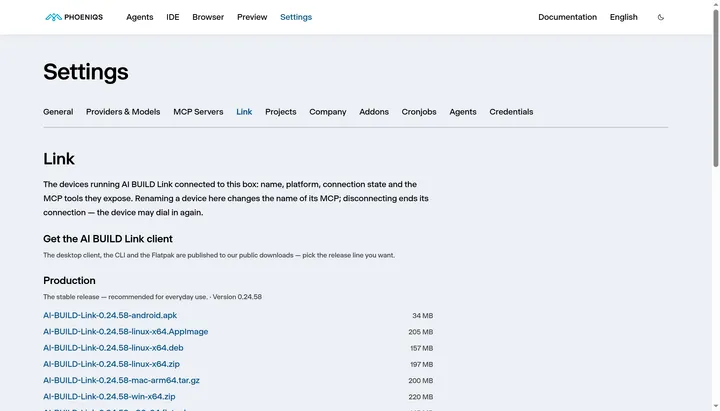
The same files are attached to each AI BUILD Link release. macOS arm64, Windows x64, Linux x64 and Android are supported.
macOS (arm64)
- Download
AI-BUILD-Link-<version>-mac-arm64.tar.gzand unpack it. - Move AI BUILD Link.app into
/Applications.
This first install is the only manual one: once the app is in place it keeps itself up to date (see Updates).
Windows (x64)
Download AI-BUILD-Link-<version>-win-x64.zip, unpack it anywhere and run
AI BUILD Link.exe.
Linux (x64)
Pick the format that suits your distribution — all of them end with the app in your applications menu:
Android
Download AI-BUILD-Link-<version>-android.apk and install it. It is a
sideload, so enable "install unknown apps" for the browser or file manager
you use. The APK is release-signed and the signature is stable across releases,
so a newer one installs straight over the previous one.
Command line
The companion CLI (codebox-link) is for the developer install; Settings →
Link links it, and it is also on the Forgejo npm registry.
Connect
On first launch, the client's Connect window opens on My codeboxes — the workspaces you own, discovered for you. Pick one and press Connect: there is nothing to type. (A developer option can list the staging and development environments too.)
A workspace that is not in the list can be reached by entering its URL and pressing Connect. Either way, the client opens your browser once for the PHOENIQS sign-in approval, and then stores the connection.
After that, the client connects on launch by itself; the Connect window is only needed to switch workspace or to retry a connection that failed.
Use it
- Sessions as a chat. Your workspace's sessions are tabs in the client; the conversation shows the agent's text, its reasoning and its tool calls as they happen.
- Stop. While the agent is generating you can press Stop to interrupt the turn.
- Attachments. Paste or attach files and images to a prompt, the same way as in the Web view.
- Cost. Each session shows a
tokens · costchip — the context size and what the session has cost so far. - Notifications. On macOS the client can notify you when a session needs attention.
Device tools
This is what the client adds beyond the browser: the agent can use your
machine. Everything is opt-in per device, and only what you enable is
exposed. Each connected device answers the agent through its own tool server,
named link-<device>, so you can see which machine the agent is working
with.
You enable and configure these in the client's own settings. Each device is separate: enabling a tool on one machine does not enable it on another.
In the workspace, Settings → Link lists the devices connected to it — each device's name, platform, connection state and the tools it exposes — and lets you rename a device (which changes the name of its tool server) or disconnect it. A disconnected device can simply connect again.
App control on Android
App control lets the agent read the screen of an app you know and tap or type in it — for example to look up a train connection in SBB, open a village's local forecast in MeteoSwiss, or send a WhatsApp message — and, without reading the screen, to open an app's deep links. It needs two switches, and both are off by default:
- In the client — Device access. Open the client's Device access screen and turn on the App control row. This is the consent that tells your workspace the device can drive apps at all.
- In Android — the Accessibility service. Open Settings → Accessibility → Installed apps (on some devices "Downloaded apps"), find "AI BUILD Link app control" and turn it on. That entry — "AI BUILD Link app control" — is the service, listed separately from the app itself. It is the mechanism that actually reads the screen and performs the taps; until it is on, every screen action is refused with "App control needs Android's Accessibility service…".
Deep-link actions (opening an app to a specific place) work without the Accessibility service — only reading or driving the screen needs it.
Updates
The client checks for updates itself — Check for updates in the app and in its tray. There are two release channels:
- Production — the stable release (the default);
- Experimental — every release, offered as soon as it is built (chosen in the client's developer options).
What an update does depends on the platform:
- macOS — the app updates itself (see below).
- Android — it downloads the new APK, verifies it against the published checksum, and hands it to the system installer; you confirm the install.
- Windows — the new build is opened in your browser, exactly like the first install.
- Linux — a Flatpak updates through your software centre, an AppImage replaces the file, a deb goes through your package manager, and the zip is unpacked over the old copy.
macOS updates in place
On macOS, Check for updates — from the tray, or from the app's own row — downloads the new build, verifies it against the published checksum, and only then asks you to confirm. Once you confirm, the app replaces itself in place: the previous copy is kept until the new one is running, so an update that fails part way through is rolled back and you are never left without an app. It then clears the download quarantine and relaunches itself.
If the app cannot write to its own folder — an admin-owned /Applications, or a
managed path — it does not force the update: it opens the download in your
browser and shows the command to clear the quarantine, with a Copy button.