The AI Build console is the page at your tenant's root address
(https://<your-tenant>/). You sign in with PHOENIQS single sign-on — the same
account you use for the Phoeniqs Console — and it lists every AI Build
environment you own, with its address, customer, environment and status. Use
Open to go to an environment (sign in there with the same account), or
Copy URL to copy its address.
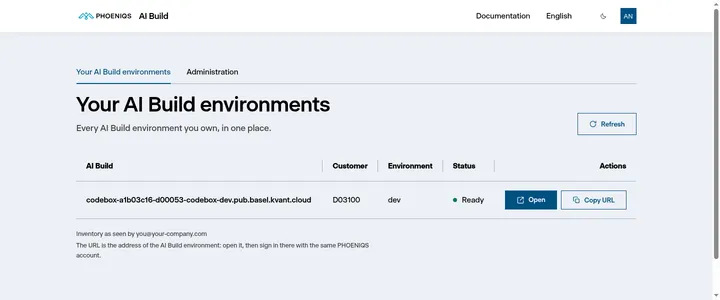
The console's default view: the AI Build environments you own
The two areas
The console has two areas, and most people only ever see the first:
Administration appears only if you administrate a company. It is decided
from your sign-in: your account must be an administrator of that company (in
PHOENIQS terms, a c/<company>/…/a role). If none of your companies grants it,
the console shows no administration area at all — there is nothing to switch to.
Each area has its own address: the default view at / and administration at
/admin. You can bookmark or share /admin directly, and reloading it keeps you
there; anyone without administrator rights who opens /admin is returned to the
default view.
Choosing a company
If you administrate more than one company, administration starts with a company picker. Only companies that run at least one AI Build environment are listed — company settings only mean something for a company that actually runs environments, and a company appears as soon as it has one. If none of the companies you administrate has an environment yet, the area says so, rather than showing an empty form.
The company settings
The editor below the picker is the company's company-settings source: where its environments clone the configuration, agents, skills and repository catalog they share. What you set here applies to every AI Build environment of the company, and it reaches each environment on its next restart.
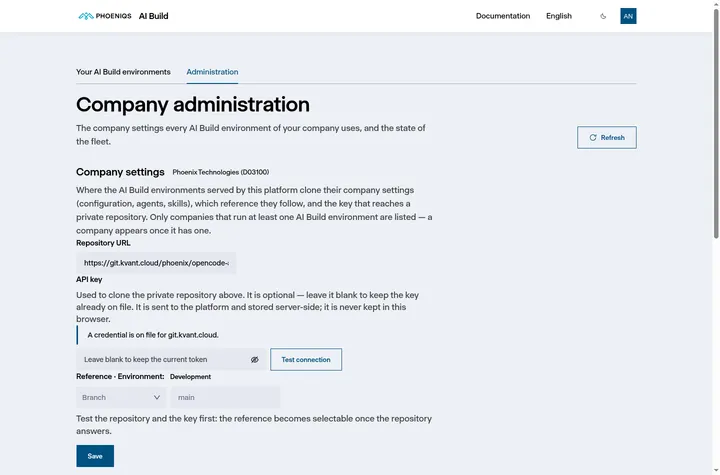
The company-settings editor
Repository URL
The address of the Git repository that holds the company settings — the same
repository a workspace checks out under
Settings → Company. Enter it as a full https
address; the platform derives the Git host from it.
API key
The Git access token used to clone the repository when it is private. A personal access token with read access to that repository is enough — the environments only read the settings.
The key is optional: leave it blank to keep the one already on file. While a key is on file the panel says so and names the host it belongs to; before any key is set it says No credential is configured yet.
Test connection
Click Test connection to have the platform probe the repository with the key (yours, or the one already on file). The answer decides whether the reference can be set: it reports Connection successful — the reference is now selectable, or names the reason it could not be probed:
Reference
The reference is the version of the company settings the environments follow. It becomes editable only once Test connection has succeeded, because it is picked from what the repository actually published; until then it shows the value already stored, read-only.
Choose a reference type:
For a Branch or a Tag, the reference value is chosen from the branches or tags the repository published. For Latest semver it is a range the platform resolves to the highest matching tag.
The reference applies to the environment this console serves, shown next to it.
Where no reference is stored yet, that environment's own default applies — the
main branch for development, the latest release tag for staging, and the
production tag for production.
Save
Click Save to apply the company settings. It reports Company settings saved. The change is distributed to every environment of the company; each one picks it up on its next restart, and the environments table below shows what each is running in the meantime.
The company's environments
Below the editor, Company AI Build environments lists every environment of the company with what it is running and its state: