Your pools reach AI assistants in two ways: files you add to a chat land in your AI Chat pool, and agents query your other pools through the Data Pools MCP server.
The AI Chat pool
Every user has an AI Chat pool, created automatically. Files you upload in PHOENIQS Chat for file search land in it, and get the same treatment as any upload: OCR, indexing, a description and metadata. See How documents are read.
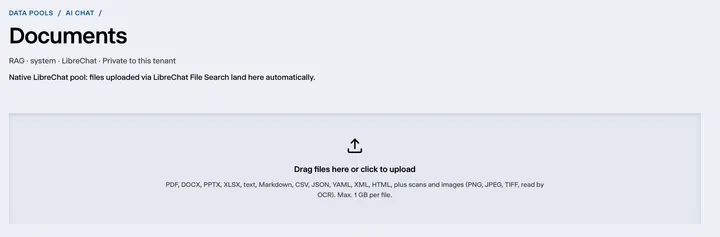
- It is yours alone. Only you see it in Data Pools.
- Chat already uses it. The assistant searches these files through Chat's own file search, so the pool is deliberately never offered to agents through the MCP server. That would give them the same documents twice.
- Files attached to a shared agent stay searchable for everyone who may use that agent, but only through the agent.
- It cannot be deleted or renamed. You can delete individual documents from it.
Connecting agents to your pools
Agents connect to Data Pools through one read-only MCP server. Connect agents (MCP) in the Data Pools menu shows its address, the Server address.
On first use, the agent asks you to sign in once with your PHOENIQS account. From then on it sees exactly the pools you can read in Data Pools: your own, those you are a member of, and those open to your organisation. The AI Chat pool is the exception, as described above.
PHOENIQS Chat
When you provision PHOENIQS Chat, you can connect it to one of your company's Data Pool Dedicated. The chat then gets the Data Pools MCP server, stores its File Search files in Data Pools, and shows a link to Data Pools in its sidebar.
- A chat connects to one Data Pool at most. It is chosen when the chat is provisioned and cannot be changed afterwards.
- One Data Pool can serve several chats.
- While a chat is connected to it, the Data Pool cannot be cancelled.
OpenCode
OpenCode on your own computer connects with your own sign-in. Add the server to
your opencode.json, with the Server address from Connect agents (MCP):
Then sign in once:
Your browser opens for the PHOENIQS sign-in. There is no client ID or secret to set up.
The tools agents get
What agents see of a pool
A pool's Details section shows it from the agent's side:
The pool's description is the first thing an agent reads, so write it with agents in mind: what the pool holds, and what questions it can answer. The owner can change the name and description at any time with Edit details. Two of your pools cannot have the same name, and the description can be up to 500 characters.
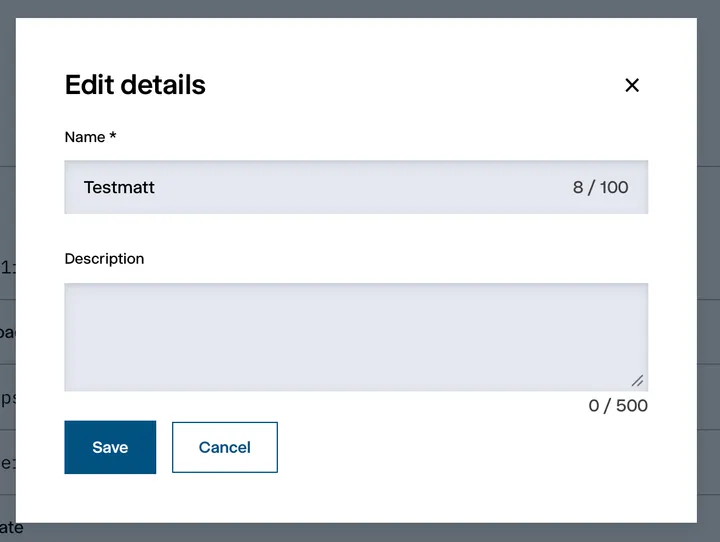
Edit details