
#
Terminal
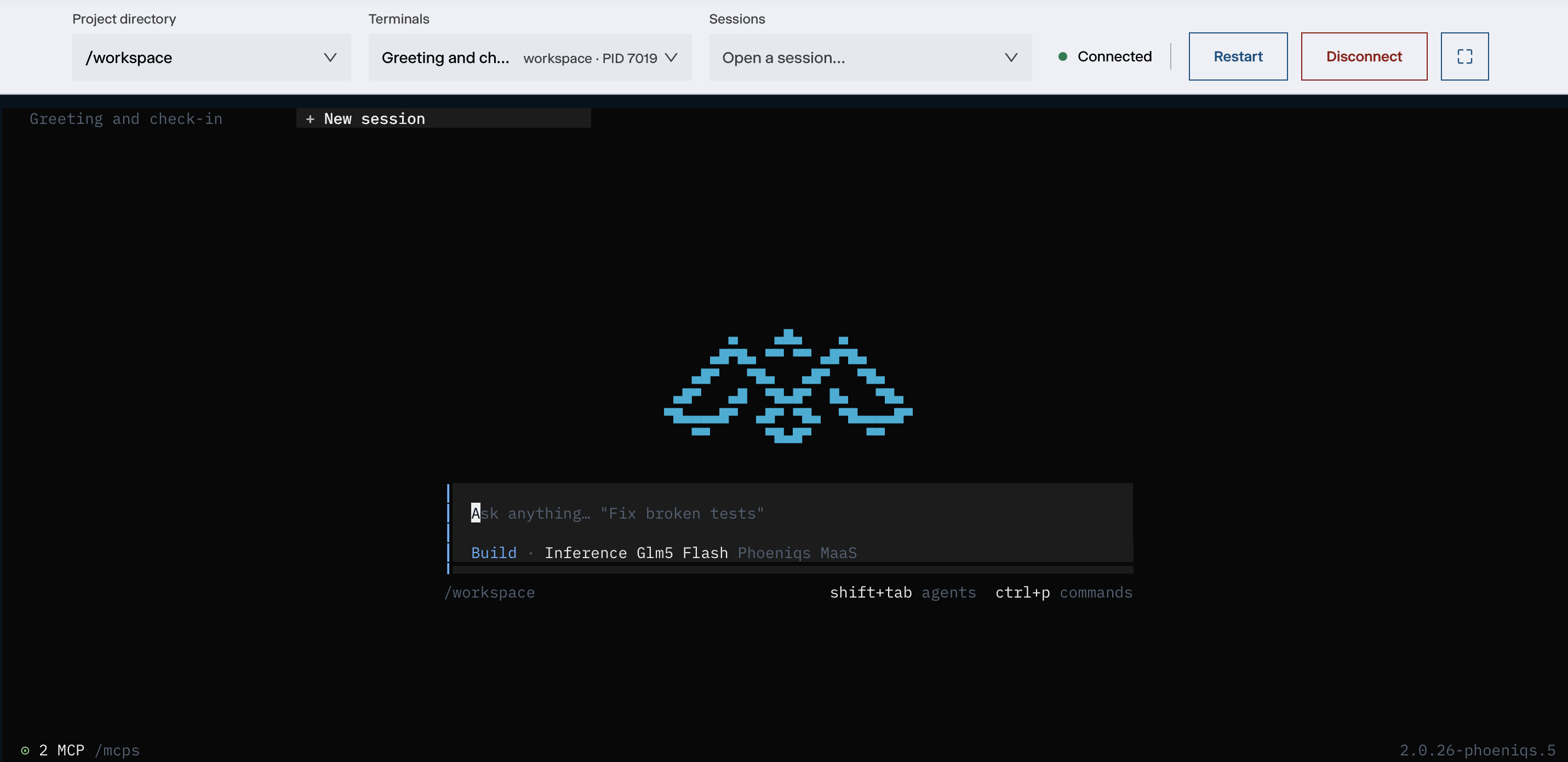
The Terminal tab is where you work with the coding agent. You describe what you want, and the agent reads and changes the files in your project, runs commands and reports back.
 1
2
3
4
5
6
7
8
9
10
11
1
2
3
4
5
6
7
8
9
10
11
#
The toolbar
Next to Restart, the status shows the state of the current terminal: Connected, Connecting…, Ended or Error. If the connection drops, your browser reconnects by itself. When no terminal is open, the tab shows a New terminal button instead, which starts the agent in the selected project directory.
#
Inside the terminal
#
Keyboard shortcuts
#
Build and Plan
The terminal comes with two agents you switch between with shift + tab:
- Build, the default unless your company settings name another one. It changes files and runs commands, within the permissions it is configured with.
- Plan, read-only. It explores the codebase and plans the work without changing anything. Use it to agree on an approach before letting Build implement it.
Your company settings can add agents, choose a different default, and require the agent to ask before it edits a file or runs a command. The full list of agents is under Settings → Agents. The model a new session starts with is set under Settings → Providers & Models.
#
Adding files to a prompt
Paste a file into the terminal or drag it in, and it is uploaded to your
workspace with its path added to the prompt. Images and PDFs appear as
[Image 1] or [PDF 1]. Text and data files, and Word, Excel and PowerPoint
documents, are added as a path the agent opens. Each file can be up to 10 MB.
Attached files are stored in a hidden .attachments folder in your workspace.
Files older than 24 hours are removed the next time you attach one, so move
anything you want to keep into a project.
#
Leaving and coming back
Closing the browser tab, reloading the page or moving to another tab ends nothing. Your terminals keep running in the workspace, so the agent carries on with a long task while your laptop is closed. The next time you open the workspace, the running terminals are picked up again and listed under Terminals. Only Disconnect ends a terminal.
Conversations are stored on the workspace's persistent volume, so they also survive a restart, an upgrade and a redeployment of the workspace. Reopen them from Sessions. If your history looks empty after importing a workspace archive, the import replaced it with an older export; see Workspace data and restarts.
#
What the agent can reach
Inside your workspace the agent works with:
- Your project files, the checkouts under
/workspace/<project>/, read and write. See Projects. - Git, acting as the credential for that host in Settings → Credentials. Commits and pushes carry that identity.
- Installed tools, including
git,svn,node,pythonand thecodegraphcommand. - Code intelligence. On projects with CodeGraph enabled, the agent can answer structural questions about the codebase without reading every file. See CodeGraph.
- The browser, a real web browser it can drive while you watch. See Browser.
- Further tools you connect under Settings → MCP Servers.
#
Running commands yourself
For a plain shell, open the integrated terminal in the Editor tab. It runs as the same user as the agent and sees exactly the same files, so there is no handover between your work and the agent's. A dev server you start there shows up in the Preview tab.
#
Good to know
- One disk, two writers. The agent and the editor share one filesystem. Holding a file open with unsaved changes while the agent rewrites it can overwrite one set of edits.
- Restart terminals after an import. After importing a workspace archive, open terminals keep their view of the disk from before the import until you restart them.