
#
Browser
The Browser tab shows a real web browser running inside your workspace. The agent uses it to open websites, read documentation and test the app it is building, and you watch it work live in this tab. It is the same browser either way: you can click, type and navigate in it yourself at any point.
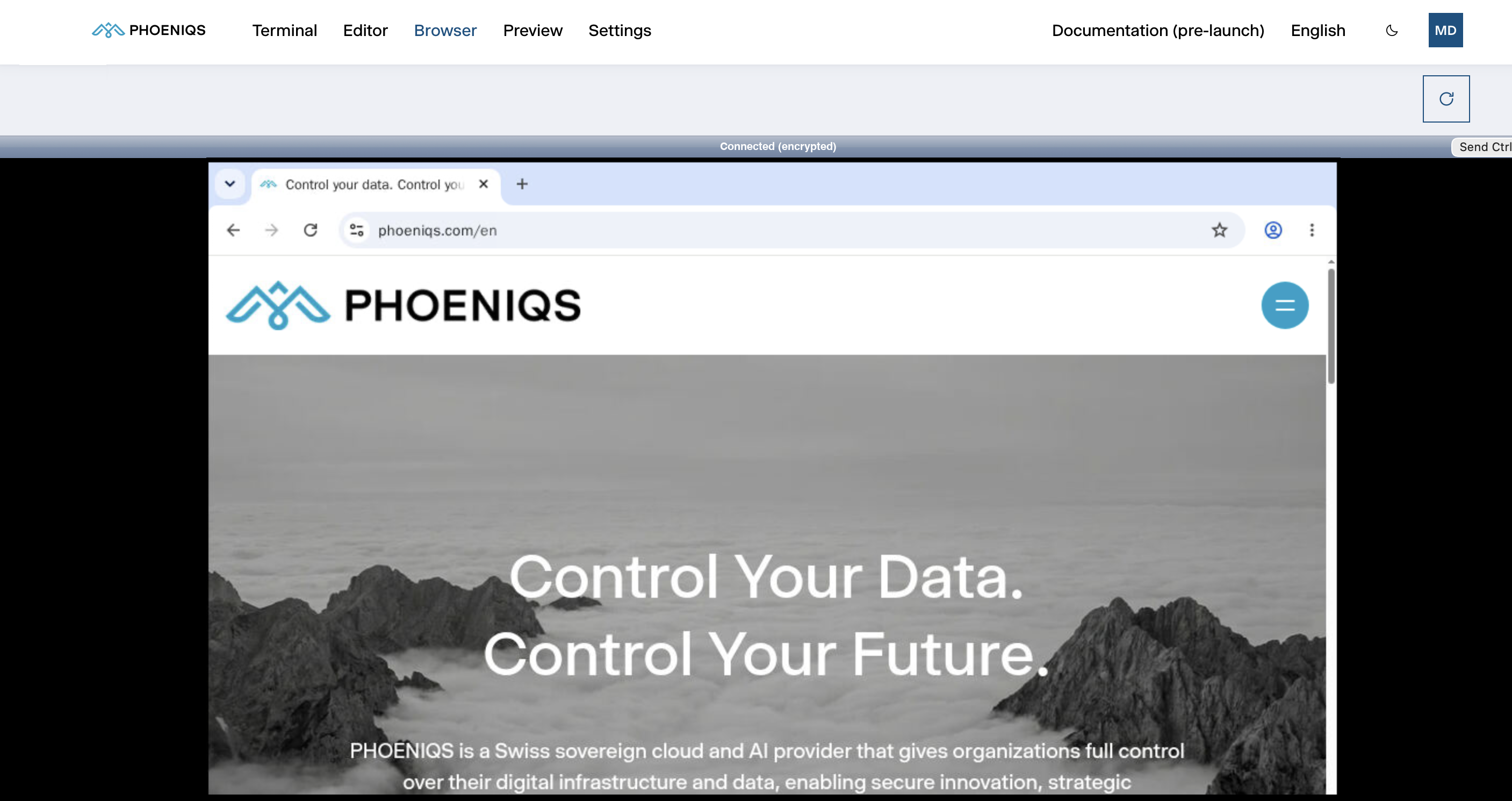
The browser is Chromium, the open-source browser Google Chrome is built on.
#
How the agent uses it
The agent drives the browser through its browser tool, which is connected in
every new workspace. Ask for something that needs a web page, and you can follow
along in this tab while it happens. For example:
Open the app on localhost:8080 and check that the sign-up form works.
Read the release notes of our UI library and list the breaking changes.
Because the browser runs inside your workspace, it reaches your dev server
directly on localhost, so the agent can test what it has just built in the
Preview without any extra setup.
#
Watching and taking over
- The view is scaled to fit the tab.
- Take over at any time. Your clicks and typing go to the same browser the agent uses, which is useful for a sign-in or a cookie banner the agent should not handle.
- If the view freezes or shows "Disconnected", press the Reload button at the top right. Coming back to the tab from another one reconnects on its own.
- The bar above the browser shows the connection state. You can ignore its Send CtrlAltDel button.
#
Logins persist, deliberately
The browser's profile is stored on the workspace's persistent volume, so cookies and site logins survive restarts and upgrades. Sign in to a site once, and the agent can use it in later sessions.
Treat it like your own browser: only sign in to sites you are comfortable letting the agent use under your account.
#
Where its files go
Screenshots and page snapshots the agent takes go to a temporary folder that is
cleared when the workspace restarts. While the workspace runs, you can open them
in the Editor under .data/opencode/browser-output. To
keep one, ask the agent to save it into your project.
#
Good to know
- Websites see your workspace, not your laptop. Pages are loaded from the workspace on Swiss infrastructure, so sites see its address. Keep that in mind for sites that only accept known IP addresses.
- It is the heaviest part of the workspace. If things feel slow while you are not using the browser, check whether a page in it is still busy, and close that tab.
- To stop the agent using the browser, disconnect the
browsertool under Settings → MCP Servers.