
#
Editor
The Editor tab is a full VS Code editor running in your workspace. It opens
on /workspace, so you see and edit the same files the agent is working on.
There is nothing to install, and no second sign-in: it shares the session you
opened the workspace with.
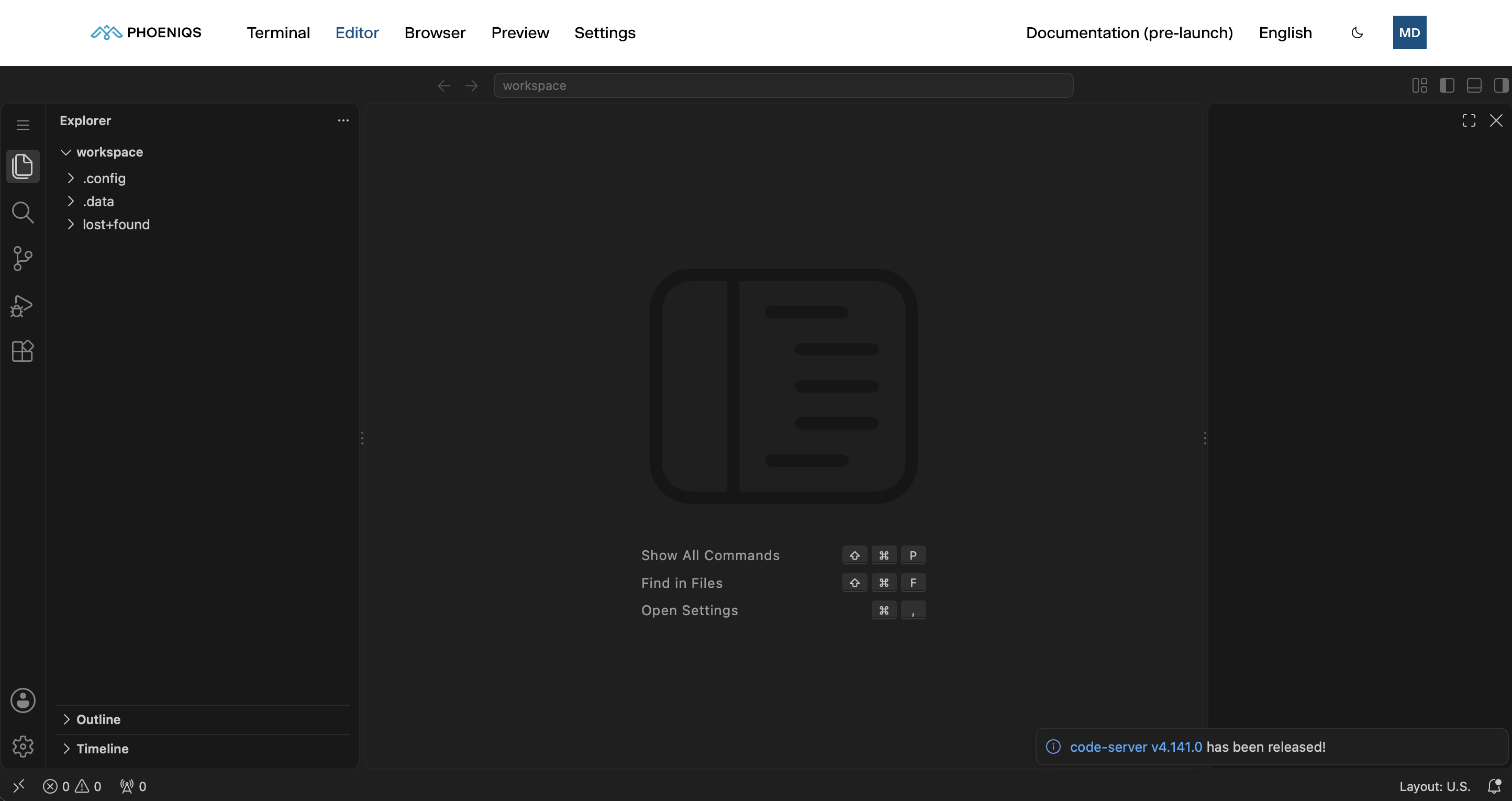
The editor stays loaded while you use the other tabs, so switching back to it is instant and your open files, layout and integrated terminals are where you left them.
#
What you see in the Explorer
Everything under /workspace is kept across restarts. See
Workspace data and restarts.
#
Defaults
A new workspace starts the editor with:
- The dark theme, and no Welcome page.
- VS Code's built-in AI chat switched off. The coding agent is in the Terminal tab.
- Large generated folders left unwatched:
node_modules,dist,build,.next,.venv,target,.cache,coverageand Git's internal object store. This keeps the workspace responsive. If a file inside one of them looks out of date in the Explorer, refresh the Explorer.
Change any of these as you would in VS Code. Your settings are saved in
/workspace/.config/code-server/User/settings.json and kept across restarts.
The defaults only fill in settings you have not set yourself, so they never
overwrite your changes.
#
The integrated terminal
Open the editor's menu (☰, top left) and choose Terminal → New Terminal
to get a plain shell in your workspace. It runs as the same user as the agent and sees the same files, with
git, svn, node, python and the codegraph command available. A dev
server you start here shows up in the Preview tab.
The prompt may show a number instead of a name, such as 1001@…. This is
expected: the workspace runs under a fixed numeric user. Your Git identity and
credentials are unaffected, since they come from Settings → Credentials.
#
Good to know
- One disk, two writers. The editor and the agent share one filesystem. Holding a file open with unsaved changes while the agent rewrites it can overwrite one set of edits. Save before you hand a file to the agent, or let the editor reload it when the agent is done.
- Restart terminals after an import. After importing a workspace archive, open terminals keep their view of the disk from before the import until you open new ones.