
#
Documents
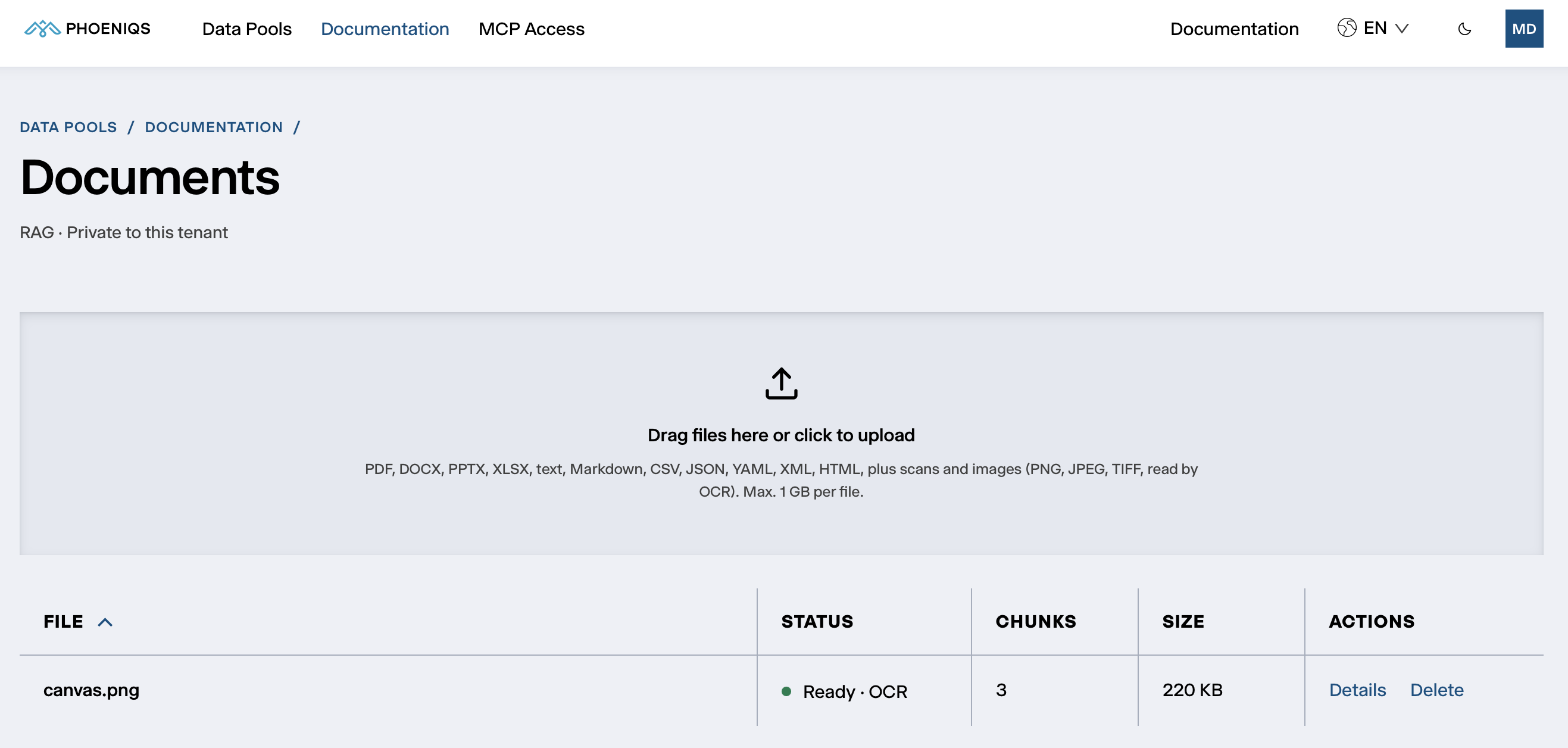
The Documents section of a Knowledge (RAG) or SharePoint pool lists its documents and is where you upload new ones.
#
Uploading
Drag files onto the upload area, or click it to choose them. Several files at once work.
Each file can be up to 1 GB, and uploads count towards your Data Pool's storage. Files are checked by their content, not their name, so a file whose content does not match an accepted type is refused.
In a SharePoint pool there is no upload area: the files come from the SharePoint site. See Pool types.
#
The document list
#
How documents are read
When a document is uploaded, Data Pools:
- Extracts its text. For PDFs, each page is checked for a usable text layer. Pages without one are read by OCR.
- Reads scans with an AI vision model. Scanned pages and images are transcribed by a vision model on the PHOENIQS AI Model Service, with a built-in OCR engine as a fallback and as a check that nothing was missed.
- Reads forms and invoices as structure. Invoices, orders and forms come out as fields (such as invoice number, date or IBAN), tables, line items and totals, alongside the plain text. Agents can ask for this structure directly.
- Splits and indexes the text into passages, searchable by meaning and by keyword.
- Describes the document. An AI model writes a description and extracts metadata: the people, organisations, topics, locations and timeframe it covers.
- Updates the pool's summary, the overview of the pool's contents that agents read first.
The first four steps decide when a document is Ready and searchable. The description and metadata follow in the background and never hold up an upload.
#
Confidence
Every document read by OCR gets a confidence between 0 and 1. Below 0.6, the document is marked low confidence in the list, and agents are told so too. Check those documents: a poor scan, handwriting or an unusual layout can leave gaps in the text.
#
Document details
Details on a document shows:
#
Deleting a document
Delete removes the document, its passages, description and metadata at once, and agents stop finding it immediately. It cannot be undone.
#
Test retrieval
Test retrieval shows what a search of this pool returns, before you rely on it in an agent. It is visible to administrators only. Type a question in plain language and click Search. Each result is a passage, with its chunk number and a relevance score.
If the right passages do not come back:
- Check the document is Ready and not low confidence.
- Phrase the question the way the document does. Searches combine meaning and keywords, so the document's own terms help.