
#
Accessing Your Infra - OpenShift Environment
For Business Users
Phoeniqs's Managed Container Platform provides a streamlined way to run your business applications on Red Hat OpenShift without the complexity of managing the infrastructure yourself. Whether you need scalable compute for day-to-day workloads or high-performance AI/GPU capacity for model training and serving, Phoeniqs delivers a secure, ready-to-use environment. Simply log in through the Phoeniqs Portal, select your project, and start building, deploying, or modernizing applications at scale -- all backed by Phoeniqs's enterprise-grade cloud operations.
For Technical Users
This guide explains how to access and operate your Phoeniqs-provisioned OpenShift environment. It covers how to:
- Log into the appropriate OpenShift cluster (production or AI/GPU) with Phoeniqs identity credentials
- Navigate to your assigned project to view resource allocation, capacity usage, and T-shirt size provisioning from the Phoeniqs Portal
- Utilize the default environment setup, including the pre-deployed Helm chart with a CUDA container for GPU workloads
- Manage workloads within the OpenShift console
With this setup, you can focus on application delivery and workload optimization while Phoeniqs handles cluster provisioning, resource management, and operational security.
#
Red Hat OpenShift Overview
Red Hat OpenShift is for users that are familiar with Kubernetes. It is not designed for users that are unfamiliar or have not worked with Kubernetes before. For best success, it is recommended that an Engineer or DevOps support be provided for optimum implementation and use.
If you do not have an Engineer or DevOps support or experience using Kubernetes, please first familiarize yourself with Kubernetes documentation:
IMPORTANT: If you do not have an Engineer or DevOps resources and need assistancee with implementation of OpenShift, Phoeniqs is able to provide professional services for that level of support. To pursue this, please contact operations@phoeniqs.ch and request support. In the subject, please type: Client support needed for OpenShift.
#
Before You Begin
You must have an active subscription to access the Modern Container Platform.
IMPORTANT: If you have not purchased a subscription, access the Buy a Subscription Guide before proceeding.
#
1. Select the Appropriate OpenShift Cluster from the Phoeniqs portal
The type of cluster that you select, depends on whether you are using model serving or GPU units. If do have model serving or GPU units, the cluster must be specific for that use.
Tip: If you are not using model serving or GPU, use the General Purpose cluster to run your workloads.
- For General purposes (non-GPU related workloads): CLICK HERE
- For an AI/GPU cluster (AI/model-serving workloads, including GPU): CLICK HERE
#
2. Log in to OpenShift
At the login screen, select Log in with: Phoeniqs portal from the available identity providers.

Enter your username and password (same credentials used for the Phoeniqs portal.
#
3. Open Your Project
In the OpenShift console navigation menu, click Projects.
Select your assigned project from the list.
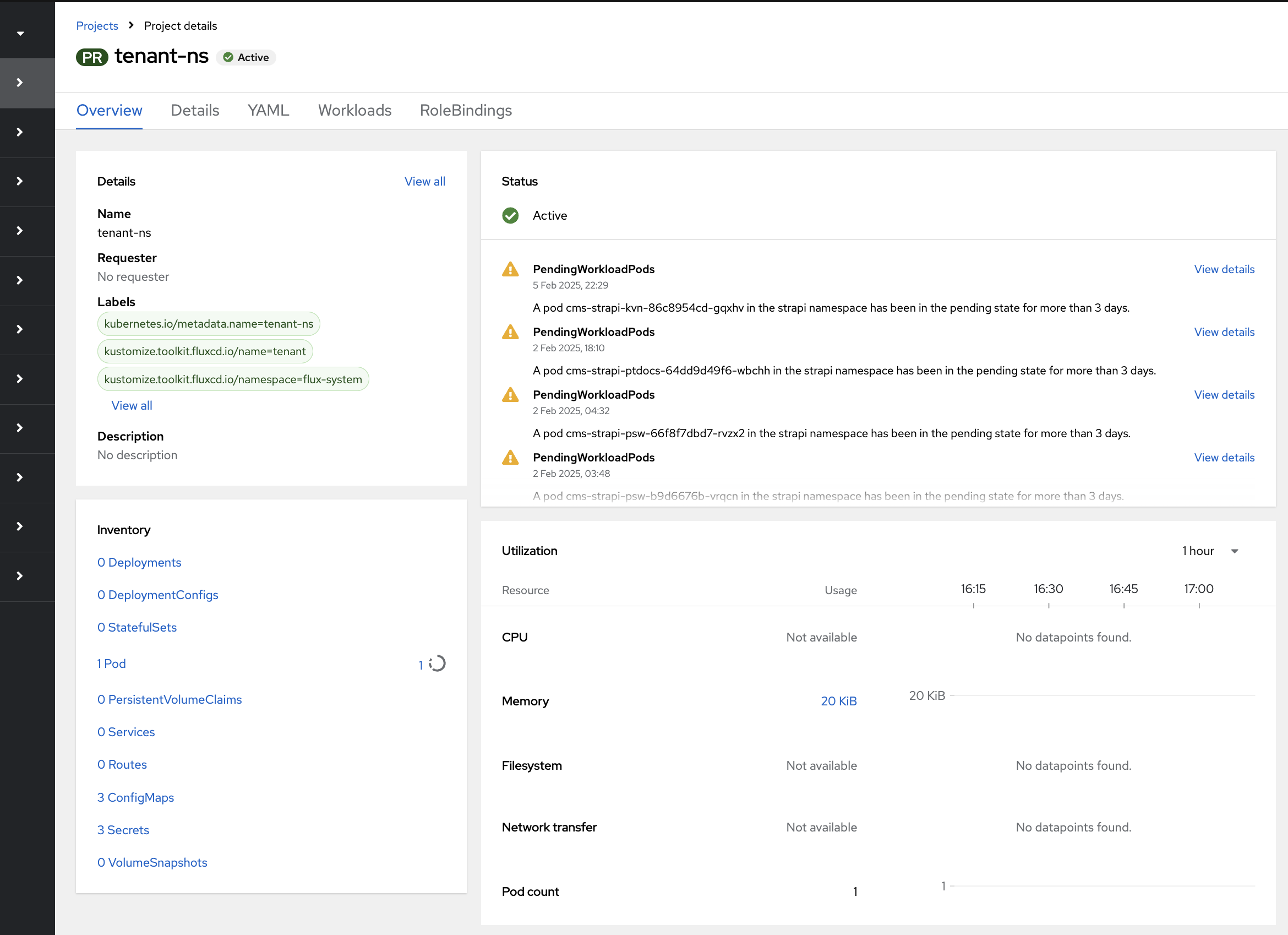
Note:
- In the project overview, you can see your current capacity usage and reserved resources (based on the T-shirt size you ordered in the portal).
- By default, the Phoeniqs portal deploys a Helm chart with a CUDA-enabled container for GPU workloads in your environment.
#
4. Review Default Deployment
By default, Phoeniqs provisions your environment with a Helm chart that deploys a CUDA-enabled container for GPU workloads.
Tip: You can view this by navigating to Workloads → Pods in the OpenShift console.
#
5. Deploy a Workload
- To deploy a workload, navigate to Workloads, and then click Pods from left side pane.

image Openshift Pods - Click Create Pod to start a new workload.
- Follow the OpenShift workflow to configure and deploy your application. For detailed guidance, see the OpenShift Documentation: Creating Pods.
#
6. Build, Modernize, and Manage at Scale
With your environment ready, take advantage of the built-in capabilities to run workloads efficiently and securely within OpenShift. Links to OpenShift documentation on specific use cases are included below.
Build and Deploy Applications
Use BuildConfigs and DeploymentConfigs to automate builds and deployments.
Scale Applications
Adjust replicas for your deployments using the Scaling Workloads procedure.
Modernize Existing Workloads
Containerize legacy applications and migrate them to OpenShift using the Migration Toolkit for Applications.
Manage Application Lifecycle
Leverage OpenShift GitOps workflows with OpenShift GitOps for version-controlled deployments.
Secure Your Applications
Apply Security Context Constraints (SCCs) and configure network policies to protect workloads.
Monitor and Optimize
Use OpenShift Monitoring to track application performance and resource usage.