
#
Credentials
Settings → Credentials holds every login and secret the workspace uses, in five sections. Everything here is stored encrypted on the workspace volume and restored each time the workspace starts. Secrets are shown masked once saved.
#
Repository credentials
The logins your checkouts use, one per Git or SVN host.
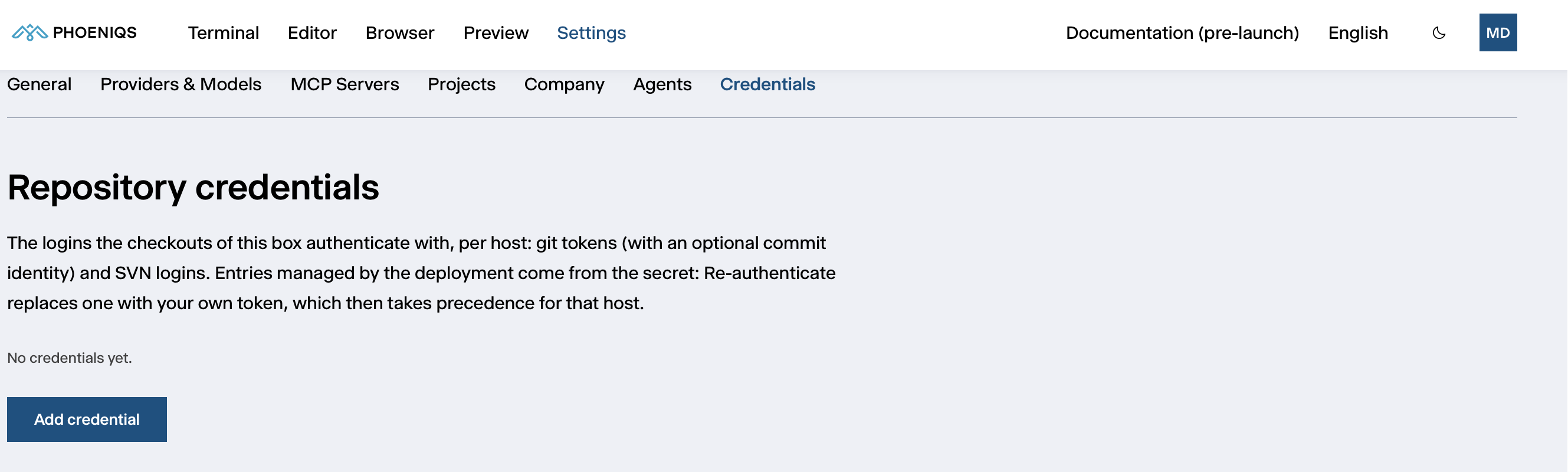
Click Add credential and choose the type:
- Git: the Host, a Token (a personal access token with read and write access to repositories), and optionally your User name, which can otherwise be read from the token. Add the Commit name and Email your commits should carry; they are prefilled from your sign-in.
- SVN: a user name and password for an SVN host.
Mark one Git credential as Default to make it your default commit identity. The workspace and the agent use the credential that matches a repository's host, so commits and pushes carry your identity.
The PHOENIQS Git service needs a token, not your password
git.kvant.cloud signs you in with single sign-on, but Git itself needs an access token. The credential dialog links to the page where you create one.
Some entries may come with the deployment. Re-authenticate replaces one with your own token, which from then on takes precedence for that host.
#
Provider API keys
The keys the agent uses to reach model providers.
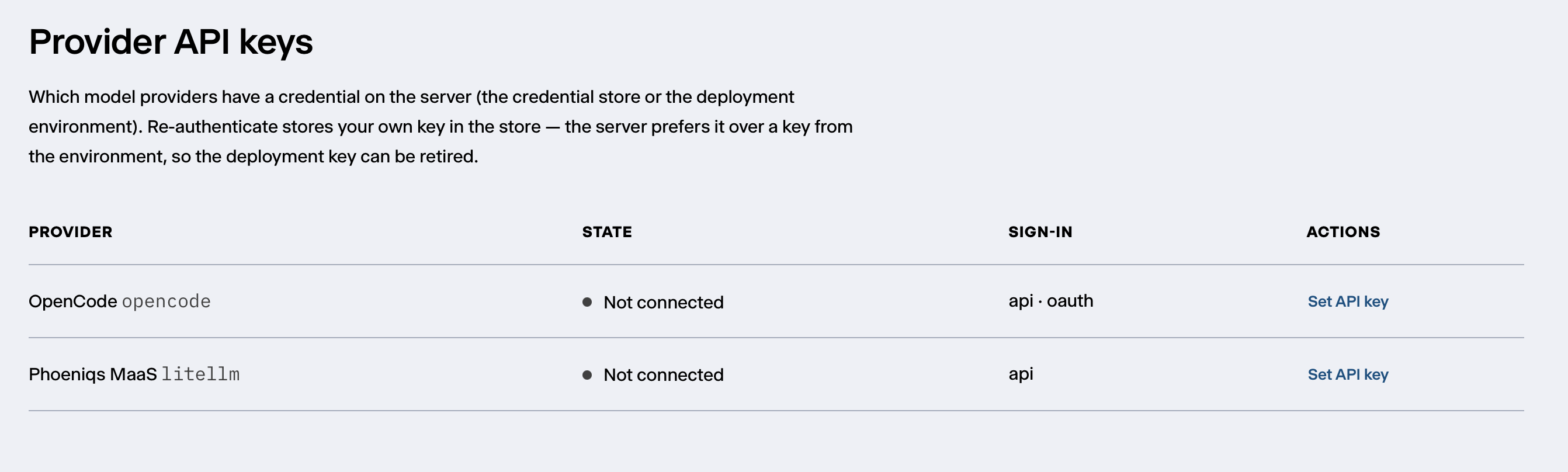
- Phoeniqs MaaS, the PHOENIQS AI Model Service, is set up with the key created when the workspace was provisioned. Set your own key only to use a different Base LLM API key; the workspace then prefers yours.
- OpenCode is OpenCode's own hosted model service. Setting a key for it sends your prompts and code to OpenCode, outside PHOENIQS.
Keys for providers you added under Providers & Models are managed here too.
#
PHOENIQS Cloud (OpenShift)
Connect your PHOENIQS Cloud account so that oc commands in the workspace,
yours and the agent's, run as you against your PHOENIQS Cloud projects.
Without it, they run under the workspace's own technical account.
- Connect via SSO signs you in with your PHOENIQS account.
- Paste token takes a token from the OpenShift console instead: your name → Copy login command → Display Token. Paste the token and the server URL.
Tokens last 24 hours and are not refreshed automatically. The section warns you as expiry approaches; Renew via SSO signs you in again with one click. Disconnect forgets your token.
#
Personal environment
Environment variables for the tools you and the agent run in terminals, such as a token for an extra command-line tool.
- Names use upper-case letters, digits and underscores, starting with a letter, such as
MY_TOOL_TOKEN. Names the platform uses itself are reserved. - Values are a single line and stored encrypted.
- New terminals get a variable immediately. The agent server picks it up the next time the workspace starts.
- A value set here overrides the deployment's value of the same name.
Keys for MCP servers and model providers belong in their own sections, not
here. For SVN, you can set SVN_USERNAME and SVN_PASSWORD here instead of an
SVN credential.
#
MCP authorizations
How each tool on the MCP Servers sub-tab signs in, with the same Authenticate, Re-authenticate and Remove auth actions. Each entry shows which identity the tool acts as.
- Tools that use a Git login, such as
forgejo, use your stored Git credential for their host by default. Choose Use a dedicated token instead to give the tool a separate token, and Use a stored git credential to go back. - A tool that comes with the deployment can be switched to your own key or values with Re-authenticate. It is then re-created under the same name in your own settings, and connects at once.
Values you enter are saved in your own settings and never shown again.