
#
Attach File
The Attach File feature allows users to upload PDF documents that can be referenced during a conversation with an agent. This is helpful for tasks such as summarizing a report, extracting information, or answering questions based on file contents.
Only .pdf files are supported, with a maximum file size of 4 MB.
#
Upload Options
Users can attach files in one of three ways:
#
1. Upload from Device
Manually select a PDF file stored locally on your computer or mobile device.
#
2. Login to Google Drive
Authenticate with your Google account to access and upload a PDF directly from your Drive.
#
3. Login to OneDrive
Connect your Microsoft account to upload a PDF stored in your OneDrive.
#
How to Use
- Click the "Attach File" button in the chat interface.
- Choose one of the three options:
- Upload from Device
- Login to Google Drive
- Login to OneDrive
- Select your PDF file (must be under 4 MB).
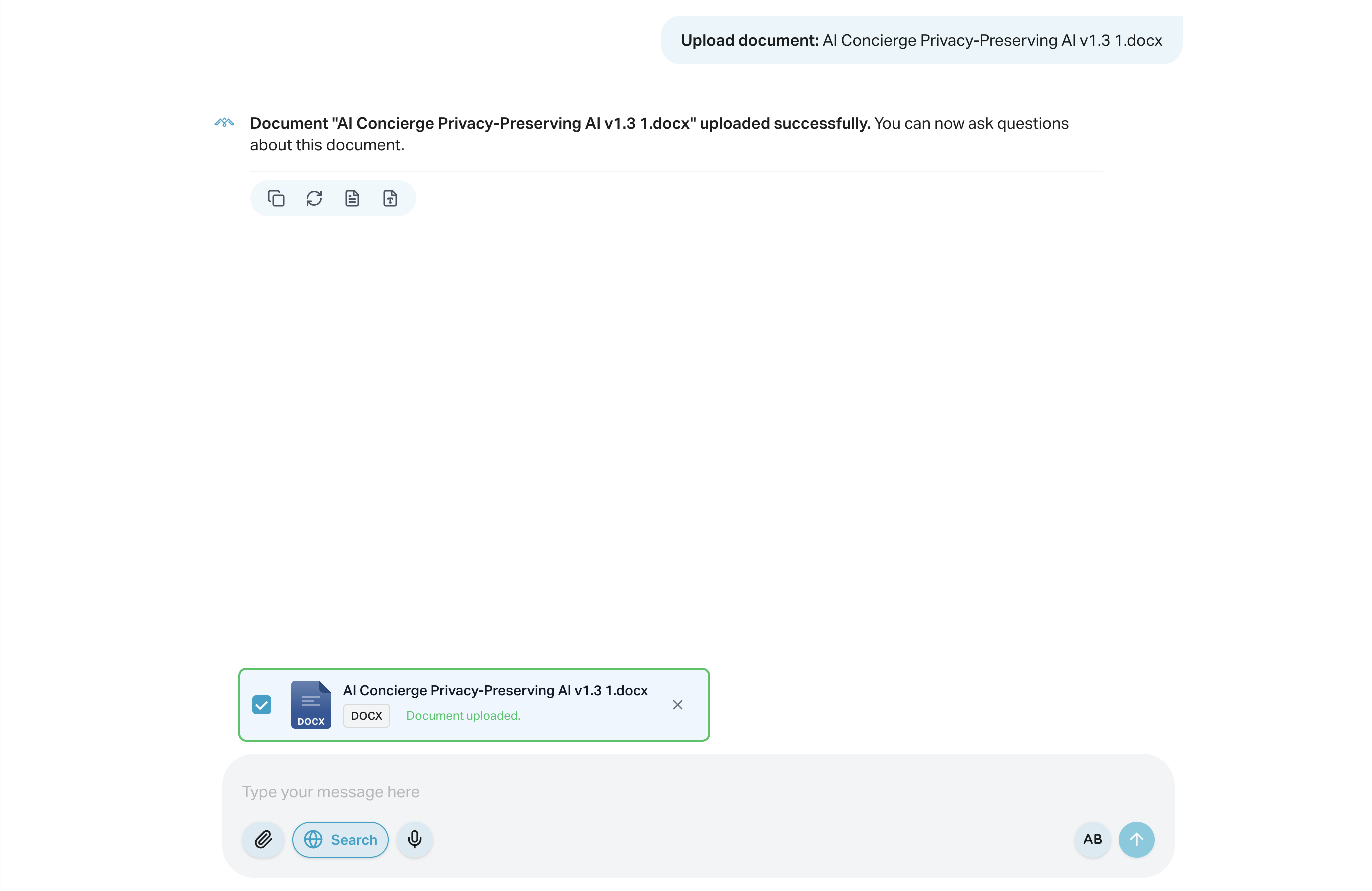
- Once uploaded, the file will be displayed in the chat. The agent can now read and respond based on the file contents.
#
Use Cases
- Ask the agent to summarize a PDF report
- Extract key information or data points
- Ask follow-up questions based on the file content
#
Notes
- Only
.pdffiles are supported - Maximum file size: 4 MB
- File content is only available during the current session unless linked to persistent memory