
#
Account Menu
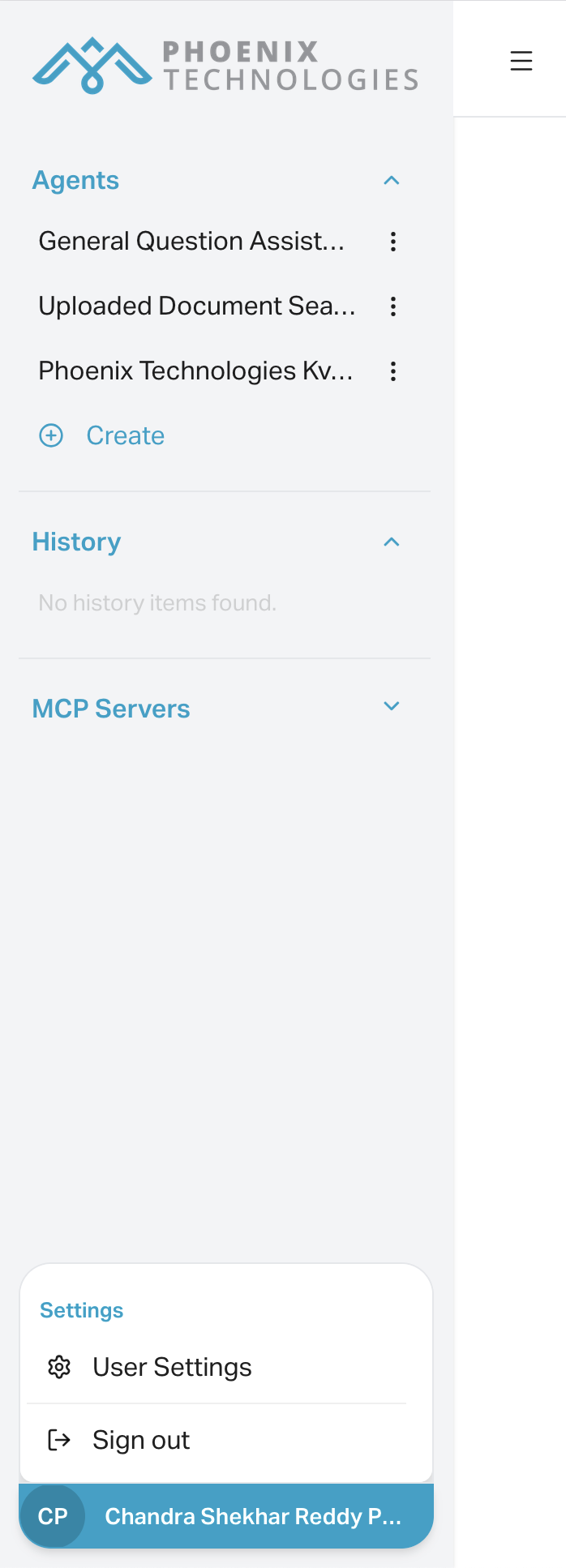
The Account Menu appears when you click your name or avatar at the bottom of the left-hand sidebar. It provides quick access to personal settings, user management, support, documentation, and logout.
This is useful for managing your account, inviting collaborators, and finding help quickly without leaving the workspace.
#
Menu Options
#
Settings
Opens user-specific or workspace-level settings (depending on your access level). This may include preferences like language, default model, or theme.
#
Add User
Takes you directly to the user management page at https://console.phoeniqs.com/en/settings/users. From there, you can invite team members, assign roles, and manage access.
#
Information
Displays basic app metadata such as version number, environment, or other workspace-specific information. Content may vary based on your deployment.
#
Contact Support
Opens a support form or email client to reach the Phoeniqs support team. Useful for technical issues, bug reporting, or general product help.
#
Documentation
Quick link to the full AI Concierge documentation portal for step-by-step guides and product references.
#
Logout
Logs you out of your current session securely. Always recommended when using a shared or public device.
#
How to Open the Menu
- Scroll to the bottom of the left sidebar.
- Click on your user name.
- The Account Menu will appear with all listed options.