
#
Copy to Clipboard
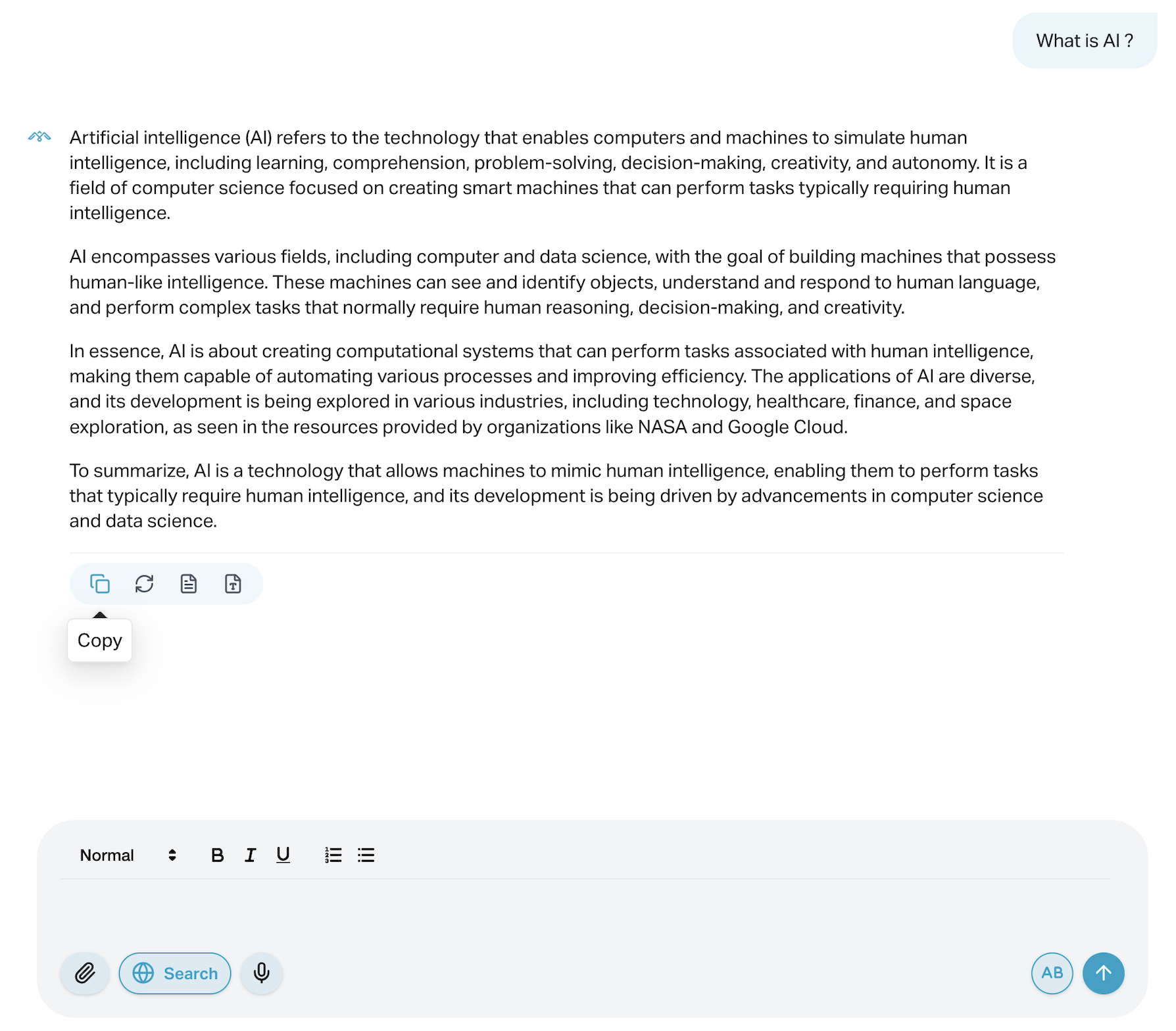
The Copy to Clipboard feature allows users to quickly copy agent responses, system messages, or user input with a single click. This functionality is helpful when sharing AI-generated output with others, storing content for later use, or pasting it into another platform.
#
Features
One-Click Copying Instantly copy any message in the chat interface.
Visual Feedback A confirmation tooltip appears (e.g., “Copied!”) to ensure the action was successful.
Works Across Devices Fully functional on desktop and mobile browsers.
#
How to Use
Hover over a message bubble in the chat.
Click the copy icon that appears in the action bar on the left below the message.
A small tooltip will confirm that the content has been copied.
#
Use Cases
Internal Collaboration Copy important responses to share in Slack, email, or documentation.
Customer Support Quickly extract agent replies for ticket notes or manual handling.
Content Reuse Save well-structured agent output for training data or marketing content.
Tip: You can also use this feature during testing to compare different agent outputs side by side.
Let me know if you’d like to document how to customize this feature or control it via settings.